Budget & Finance
How to Set Up a Google Sheets Budget Template (Step by Step)
A budget spreadsheet only works if it is set up right. Make the copy, connect your real numbers, and build the 5-minute weekly habit that keeps it alive.
Step 1: Make your own copy
Open the template link and choose File → Make a copy, saved to your own Google Drive. Never type your real numbers into the shared original — your copy is private to your account. Rename it with the month, like 'Budget — December', so you can find it fast on your phone later.
Step 2: Enter income and fixed bills first
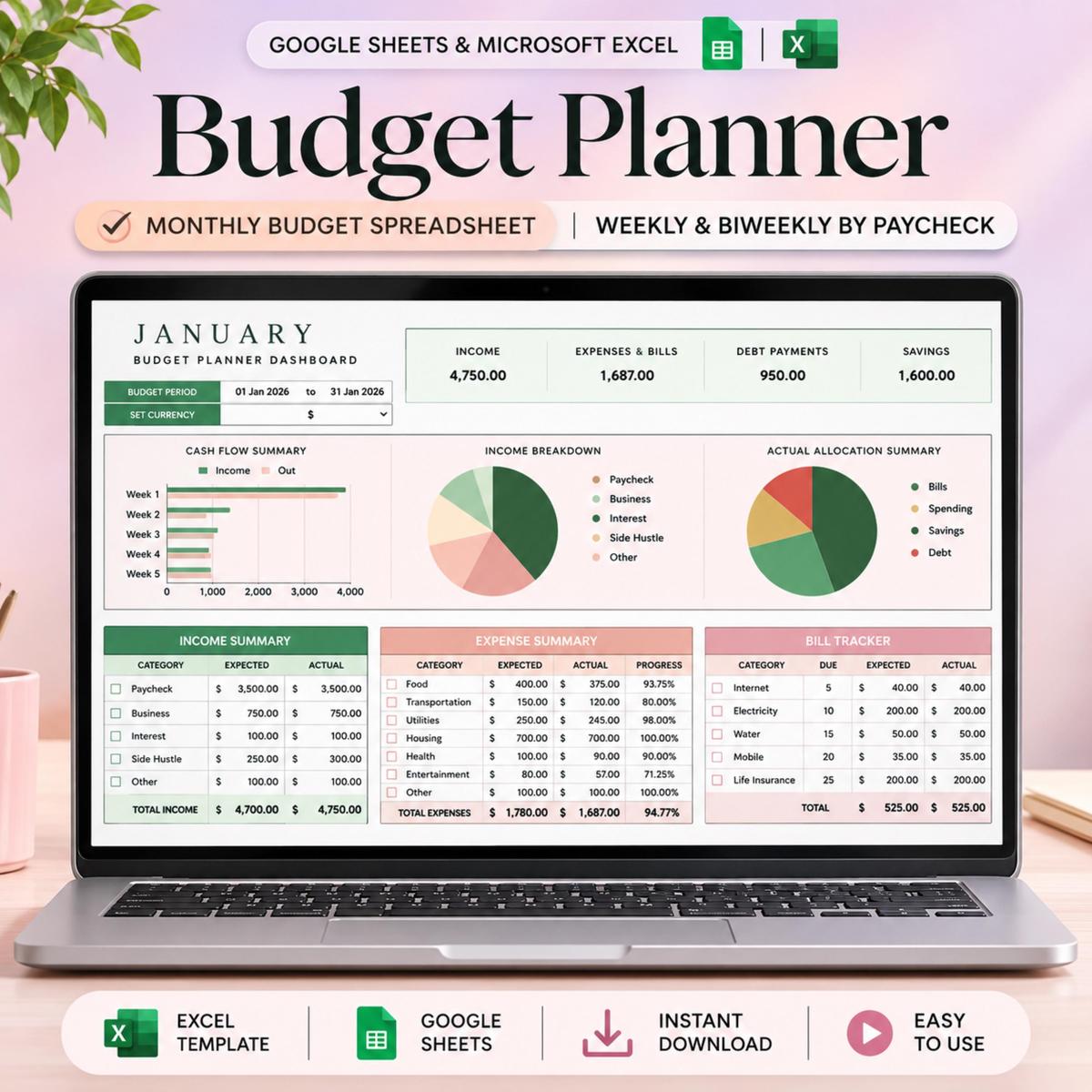
Start with money in: every income source and the date it lands. Then fixed bills — rent, utilities, subscriptions, loan payments — with their amounts and due dates. Most templates total these automatically. If bills exceed income on paper, that is the first problem to solve, before any spending categories.
Step 3: Set spending categories from last month
Do not invent category limits from optimism. Look at last month's bank activity and set each category — groceries, transport, eating out, fun — slightly below what you actually spent. A budget built on real numbers needs small trims, not a personality change, and it survives past week one.
Step 4: The 5-minute weekly check-in
Once a week, add the week's spending into the categories — most people can do this from their banking app in five minutes. The sheet shows what is left in each category, so decisions get easy: the number says yes or no, not your mood. Templates with automatic totals and a remaining-balance view make this check-in nearly effortless.